
How to Connect Claude to Retner: Run Your WhatsApp Marketing by Chatting
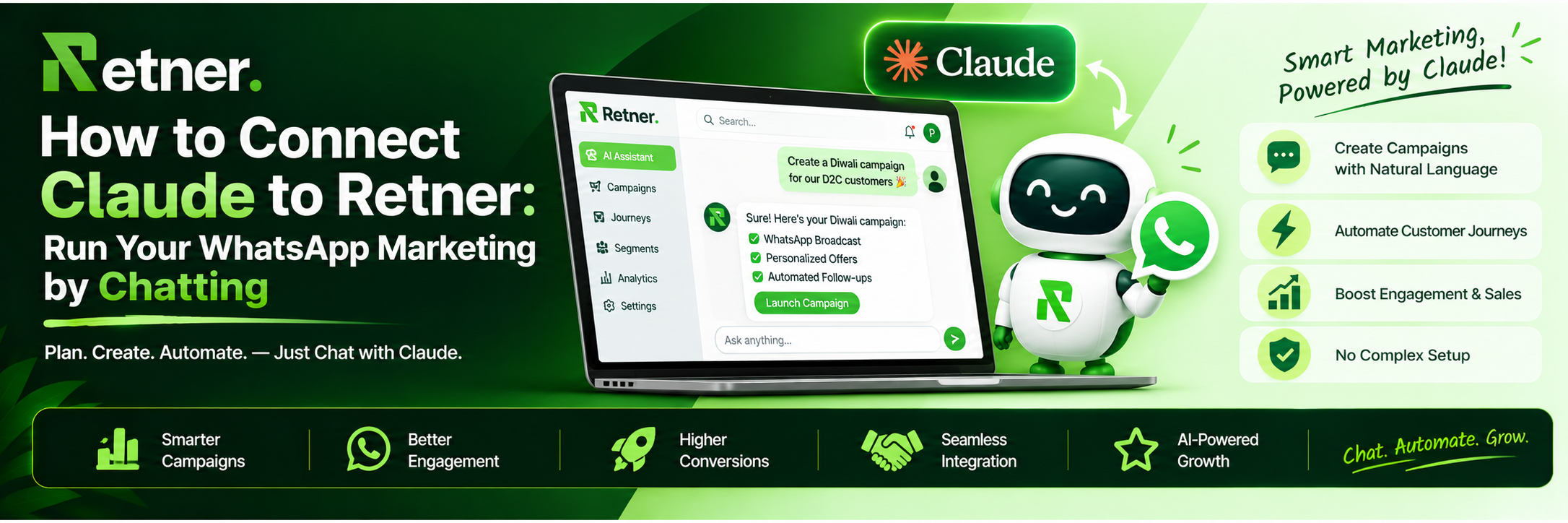
Running WhatsApp marketing for a D2C brand usually means a lot of clicking. You write a template, submit it to Meta, wait for approval, build the journey, pick the trigger, set the delays, test it, then do it all again for the next campaign.
The Retner connector for Claude changes that. You connect Claude to your Retner workspace once, then describe what you want in plain language. Claude builds the template, the journey or the segment directly in your own Retner account.
This guide shows you how to connect Claude to Retner in about five minutes, on claude.ai, Claude Desktop or Claude Code, and what to ask Claude first.
What is the Retner connector for Claude?
Retner is an omnichannel customer engagement and marketing automation platform for D2C and e-commerce brands. It covers WhatsApp, SMS, RCS, email, AI calling, AI chatbots and a website chatbot.
The connector links Claude to Retner using the Model Context Protocol (MCP), an open standard that lets AI assistants use tools inside other apps. Think of it as a secure bridge: Claude can read and act in your Retner workspace, but only after you sign in and approve access. (New to MCP? Read our no-jargon guide: What Is an MCP Connector?)
The result: you run Retner by chatting with Claude instead of clicking through the dashboard.
What you can do with Retner inside Claude
Once connected, you can ask Claude to:
- Create WhatsApp templates: write them, submit them to Meta and check their approval status.
- Build journeys: automations triggered by Shopify and store events, such as order placed, COD confirmation, abandoned checkout and delivery updates.
- Reduce RTO: confirm COD orders on WhatsApp, follow up with an AI call when a customer doesn't reply, and send prepaid payment links.
- Drive retention: set repurchase reminders per product and build segments such as repeat buyers or lapsed customers.
- Send broadcasts: send or schedule template campaigns to a list, tag or segment, with a dry run that shows audience size and cost first.
- Manage contacts: search, create, import, tag and group them into lists.
- Run AI calling: create AI voice agents, run test calls, and read call logs and transcripts.
- Set up chatbots: configure the WhatsApp AI assistant and the website chat widget, train them on your website, and review questions they couldn't answer.
- Use SMS, RCS and email: create templates, send test emails and run campaigns, depending on your plan.
- Capture leads: set up Instagram comment-to-DM automations, spin-the-wheel pop-ups and WhatsApp QR codes.
- Check analytics: get an account overview, per-journey results, campaign delivery stats and a ranked growth plan.
What you need before you start
- A Retner account
- WhatsApp connected in Retner, for WhatsApp features
- The AI Calling or AI Chatbot add-on, if you want those features, plus the Email, RCS or SMS channels if you plan to use them
- A Claude account that supports connectors
You don't need to write code or set up an API key. You only sign in with your Retner login.
How to connect Claude to Retner on claude.ai
This is the fastest route, and the connector then works on claude.ai on the web and in the Claude mobile app.
- Open claude.ai and go to Settings → Connectors.
- Click Add custom connector.
- Enter the connector URL: https://app.retner.ai/mcp
- Click Connect. A Retner sign-in page opens.
- Sign in with your Retner login, review the permissions and click Allow.
[Screenshot: Settings → Connectors with the Retner URL entered]
[Screenshot: Retner permission screen with the Allow button]
That's it. Retner now appears in your list of connectors, and Claude can use it in any new chat.
How to connect Retner to Claude Desktop
Add this to your claude_desktop_config.json file, then restart Claude Desktop. Your browser opens for the Retner sign-in the first time you use it.
{
"mcpServers": {
"retner": {
"command": "npx",
"args": ["-y", "mcp-remote", "https://app.retner.ai/mcp"]
}
}
}
How to connect Retner to Claude Code
Run this command in your terminal:
claude mcp add --transport http retner https://app.retner.ai/mcp
Then run /mcp, select retner and sign in.
Your first conversation with Claude and Retner
Start with a read-only request so you can see what Claude finds in your workspace:
"Show me my Retner account overview and tell me what I should run next to reduce RTO."
Claude pulls your account data and suggests where to start. Then move on to building something:
"Create a UTILITY WhatsApp template for COD order confirmation, check its approval status, and when it is approved build a journey that confirms COD orders. Run a dry run first."
In one message, Claude writes the template, submits it to Meta, tracks approval and builds the journey. That would normally take several screens and a lot of waiting around.
[Screenshot: Claude's reply showing the template and the journey it built]
5 prompts to try next
- "Build an abandoned checkout journey: a WhatsApp reminder after 1 hour and a second one after 24 hours."
- "For COD orders that are not confirmed on WhatsApp within 2 hours, place an AI call and branch on the outcome."
- "Create a segment of customers who ordered in the last 60 days and save it as a list called Repeat Buyers."
- "Do a dry run of a template broadcast to Repeat Buyers and show me audience size and cost."
- "Set a repurchase reminder 30 days after customers buy my protein powder."
Want the full playbook? See 7 WhatsApp Retention Journeys You Can Build by Prompting Claude and How to Reduce RTO on COD Orders with WhatsApp, AI Calling and Claude.
Is it safe to connect Claude to Retner?
Yes, and you stay in control at every step:
- You sign in yourself. The connector uses OAuth 2.1 with PKCE. You approve access on a Retner page, and Claude never sees your password.
- Access is limited to your workspace. Every request is scoped to the Retner account you signed in with.
- Spending is previewable. Messages, broadcasts, emails and AI calls use your Retner wallet balance, just as they do from the dashboard. Sending tools support a dry run that shows audience size and cost without sending anything.
- New AI assistants start switched off. An assistant Claude creates stays inactive until you turn it on.
- Claude acts only when you ask. Read what Claude proposes before you ask it to send.
How to disconnect Claude from Retner
You can revoke access at any time. Either remove the connector from Claude's connector settings, or go to Dashboard → API Keys → Claude Connector → Connected apps in Retner and disconnect it there.
Frequently asked questions
Do I need to be technical to use the Retner connector? No. You type requests in plain language. There's no code or API setup on claude.ai; you only sign in with your Retner login.
Which Claude apps work with Retner? claude.ai on web and mobile, Claude Desktop and Claude Code.
Can Claude message my customers without my approval? Claude acts only when you ask it to in the conversation. Sending tools support a dry run, so you can check audience size and cost before anything goes out.
What does the connector cost? Sending messages, emails and AI calls through Claude uses your Retner wallet balance, exactly as it does from the dashboard. See Retner pricing for plans.
Is this an official Anthropic product? No. Retner is an independent product, and Claude is made by Anthropic. The connector uses the open MCP standard.
Start running Retner from Claude
If you already use Retner, connecting Claude takes five minutes and saves hours of dashboard work every week. Open claude.ai, add https://app.retner.ai/mcp as a custom connector, and ask for your account overview.
New to Retner? Book a demo and we'll show you the connector running on a real store.
8x Return On WhatsApp Ads Spend.
Book a demo and we will get you started on proven WhatsApp marketing strategies
Table of Contents
Related Articles
View all
WhatsApp Customer Retention Strategies 2026: 10 Tactics
Learn WhatsApp customer retention strategies for 2026: cart recovery, COD, order updates, replenishment, and winbacks. See examples and KPIs.

Abandoned Cart Recovery Case Study 2026: 5 WhatsApp+AI Tips
Abandoned Cart Recovery Case Study of 5 Indian D2C brands using WhatsApp and AI voice to recover 15–45% revenue and 40–65X ROAS. See message flows.

Ecommerce Customer Retention Strategies: 2026 D2C Guide
Learn Ecommerce Customer Retention Strategies for 2026: WhatsApp automation, COD-to-prepaid, RTO reduction, and lifecycle flows boost repeat sales.